Table of Content
Introduction
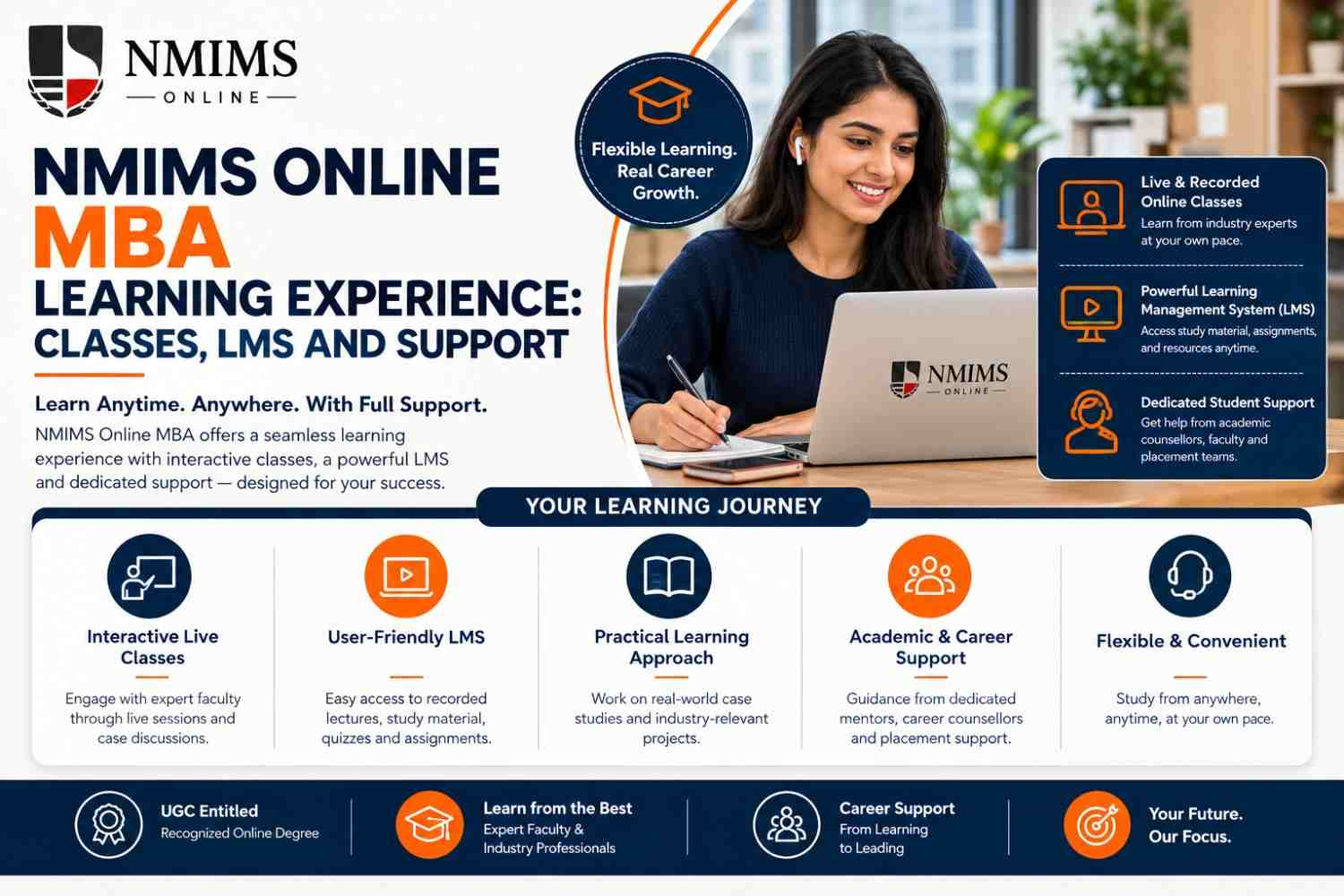
The NMIMS CDOE Student Zone or Student Portal is the main online environment for learning resources, live interactive lectures and student support. The courseware, e-books, journals, lecture transcripts and 24X7 recorded lectures. Portal access is activated after admission confirmation. Exact menus, submissions and academic functions can change, so learners should follow the active portal and official notices.
NMIMS Online MBA LMS: Quick Answer
| Question | Verified or safe answer |
|---|---|
| What is the NMIMS Student Zone? | The learning and student-support environment for NMIMS CDOE learners |
| When is portal access activated? | The admission page says Student Portal activation and lectures are available only after admission confirmation |
| What does the public portal page confirm? | Multi-format learning resources, live interactive lectures and student support |
| What do programme pages add? | Courseware, recorded lectures, e-books, journals, lecture transcripts and faculty interaction |
| Is there mobile access? | Access through the portal and mobile app |
| Does every learner see the same menu? | Do not assume so; options may depend on programme, semester, registration and academic stage |
| Should a third-party site offer an NMIMS login form? | No. An independent site should direct learners to the route and never collect credentials |
What NMIMS Officially Says About the Student Portal
- Multi-format learning resources.
- Live interactive lectures.
- Student support.
- Other learning and career-growth functions available after login.
The MBA hub and specialisation pages provide more detail about the learning experience. They state that learners can access:
- Courseware and relevant learning information.
- Live online and recorded lectures.
- 24X7 recorded lecture access.
- E-books and journals.
- Lecture transcripts.
- Faculty interaction for queries.
- A ticketing tool under Student Support.
- Callback scheduling and chat during the published support period.
These are public descriptions of the platform. They do not guarantee that every subject, file type, result, examination action or support option appears in the same location for every learner.
Start Your Journey
Need Help Picking the Right Fee Route?
Talk to our admissions team about tuition options, complete cost and how each route affects your cash flow.
When Does NMIMS Student Zone Access Begin?
The Online MBA admission is confirmed after document approval, payment approval and student verification, following which the university issues a student number. It also states that Study Kit dispatch, Student Portal activation and lectures are available only after confirmation of admission.
This sequence matters. Payment alone may not mean that the learning account should already be active.
| Admission stage | What to expect |
|---|---|
| Registration started | Applicant account and initial application activity, not necessarily learner access |
| Documents or payment under review | Verification is still in progress |
| Admission confirmed | University issues the student number according to the published process |
| Portal activated | Learner can use the official credentials and academic environment |
| Semester registered | Relevant subjects and current academic functions should appear according to the active process |
What Learners May Use the LMS For
1. Courseware and learning resources
The platform is the first place to look for current subject material. A learner should organise resources by semester, subject and unit instead of leaving files in one downloads folder.
2. Live interactive lectures
The public portal and programme pages confirm live learning. The subject timetable or calendar should be treated as the current source for dates, timing, links and any participation instruction.
3. Recorded lectures
NMIMS publishes 24X7 access to recorded lectures. Recordings are useful for recovery and revision, but availability should not be interpreted as permission to ignore live, attendance or assessment requirements.
4. E-books, journals and transcripts
These resources can deepen a topic beyond the lecture. Use the course material first, then consult the digital library or journal resources where the assignment permits and the question benefits from evidence.
5. Student support
NMIMS portal is a ticketing tool, scheduled callbacks and chat. A useful support request includes the student identifier, subject, time, screenshot or error evidence and the action already attempted. Never publish credentials inside a ticket screenshot.
6. Academic notices and relevant information
The portal covers multiple activities. Learners should expect important information to be communicated there, but they should verify the actual location for timetable, assessment, examination, project and result processes.
A Weekly Student Zone Routine
Monday: dashboard and deadline check
- Read new announcements.
- Confirm the week’s live sessions.
- Check assignment, registration or examination dates.
- Move critical dates into a personal calendar.
After every class
- File the notes under the correct subject.
- Capture any instruction about reading or assessment.
- Mark whether the recording needs to be reviewed.
- Write unresolved questions for the correct faculty or support channel.
Midweek: subject progress check
- Confirm that no subject has been ignored.
- Open the current courseware, not an old local copy.
- Complete one practice or application task.
Weekend: administration and backup
- Download permitted resources needed for the next week.
- Review ticket responses and close resolved issues.
- Save submission confirmations and fee receipts.
- Remove duplicate files and label the latest version clearly.
The portal should be a control point, not merely a video library.
A Simple Folder System for LMS Resources
Use a predictable folder structure on a personal device:
- Semester number.
- Subject name and code.
- Lectures.
- Courseware and readings.
- Assignments.
- Practice and revision.
- Official notices.
File names can include the date, topic and version, such as 2026-08-21_Corporate-Finance_Unit-02_v1. Avoid labels such as final, final2 and latest-final, which create confusion near submission.
Keep sensitive identity documents outside the study-resource folders and use secure storage. Do not share a folder containing portal screenshots if it displays student details.
How to Use the Official Login Safely
Start from an official source
Use the Student Portal URL reached through NMIMS CDOE or an official bookmarked address. Check the domain carefully before entering credentials.
Keep credentials private
An admission counsellor, independent information website, peer or assignment provider should not ask for the learner’s password or one-time code. A support team can investigate an issue without taking over the full account through an unofficial channel.
Use a unique password
Do not reuse the same password used for personal email, banking or work systems. Store it in a reputable password manager if permitted by the learner’s security practice.
Check the page before uploading documents
Confirm that the task and recipient are official. Remove unrelated sensitive information from screenshots used as evidence.
Sign out on shared devices
Avoid public or office-shared computers for examinations, payments or sensitive submissions. If a shared device must be used for a basic check, sign out and remove downloaded files.
What to Do If the NMIMS Student Portal Is Not Working
Step 1: Identify the exact failure
Separate wrong credentials, account not activated, page not loading, missing subject, missing link, upload error and payment-status mismatch. Each issue needs different evidence.
Step 2: Perform safe basic checks
- Confirm internet access.
- Reopen the official address.
- Check date and time settings on the device.
- Try the currently supported browser or application named in instructions.
- Confirm that the correct student ID is being used.
Step 3: Capture useful evidence
Record the time, page, subject, task, visible error and action attempted. Take a screenshot that excludes the password, one-time code and unnecessary personal details.
Step 4: Raise an official ticket
Use the Student Support ticketing tool or the current support route. Save the ticket number. If a deadline is close, state the deadline factually and attach evidence.
Step 5: Follow the official incident instruction
Do not submit through an unofficial email, messaging number or shared drive unless NMIMS explicitly authorises that route for the incident.
How to Write a Useful Support Ticket
| Field | Good information to include |
|---|---|
| Subject | Short description, such as “Semester 2 lecture link not visible” |
| Academic context | Programme, semester, subject and relevant date |
| Problem | Exact step where the issue occurs |
| Evidence | Screenshot or reference number without credentials |
| Attempted action | Browser refresh, official link recheck or another safe step |
| Required outcome | Access restored, status corrected or instruction confirmed |
| Deadline | Current official deadline, if relevant |
Using the Portal on Mobile vs Laptop
Official pages mention portal and mobile-app access, but the best device depends on the task.
| Task | Mobile may be useful for | Laptop or desktop is safer for |
|---|---|---|
| Announcements | Quick checks and reminders | Saving detailed notices and comparing dates |
| Recorded lectures | Short review when permitted | Focused notes, split-screen courseware and calculations |
| Live classes | Joining when the app supports the session | Stable viewing, typing and document access |
| Assignments | Reading a question or checking status | Drafting, formatting, file review and upload confirmation |
| Exams | Only when official instructions permit | Usually preferable for device checks and stable execution |
| Support | Ticket status and simple updates | Attaching evidence and writing a complete description |
Conclusion
The NMIMS Online MBA LMS and Student Zone provide learners with access to courseware, live interactive lectures, recorded sessions, digital reading materials, and student support. Understanding how to use these resources can make it easier to manage academic activities and stay updated throughout the program.
Learners should check the portal regularly for announcements, subject materials, and important deadlines. Using secure login practices, organizing study resources, and raising technical issues through official support channels can help ensure a smoother online learning experience.
Frequently Asked Questions
It is the online learning environment commonly described by NMIMS as the Student Zone or Student Portal. It provides learning resources, live lectures, recorded access and student-support functions.